RunCam Mini FPV DVR

| No Review
₹2199
Onboard DVRs give much better footage than recording through a noisy flight controller or pair of goggles. RunCam has released a DVR for mounting onto your FPV drone, designed specifically for mini and micro FPV Racing Drones. The board measures 25*25mm with 20*20mm M2 mounting holes. Specifications Power Input: DC 3.3-5.5V Power Output: DC 5V @ Max250mA Work Current: 250mA Max Video Input: CVBS@1Vp-p 75Ω Video Output: CVBS@1Vp-p 75Ω Encoder: MJPEG@AVI Resolution: VGA(…
Categories: FPV Equipment / FPV Accessories & Parts Brand: RunCam SKU: RUN-ACM-ACC-DVR
Share :

Onboard DVRs give much better footage than recording through a noisy flight controller or pair of goggles.

RunCam has released a DVR for mounting onto your FPV drone, designed specifically for mini and micro FPV Racing Drones. The board measures 25*25mm with 20*20mm M2 mounting holes.

Specifications

  • Power Input: DC 3.3-5.5V
  • Power Output: DC 5V @ Max250mA
  • Work Current: 250mA Max
  • Video Input: CVBS@1Vp-p 75Ω
  • Video Output: CVBS@1Vp-p 75Ω
  • Encoder: MJPEG@AVI
  • Resolution: VGA(640 x 480) @ 30fps(NTSC)/25fps(PAL)
  • Audio Input: MIC
  • Micro SD Card: Max 32G
  • Dimension: 25 x 25mm @20 x 20 M2 mounting holes
  • Net Weight: 3.5g


Remote Control Version

Using the Speedy Bee App to set the Remote control function, you can start/stop recording through the remote control. For example, you can bind the recording function to the ARM mode, and the DVR will start recording when the ARM mode is activated. Otherwise, the DVR will stop recording.
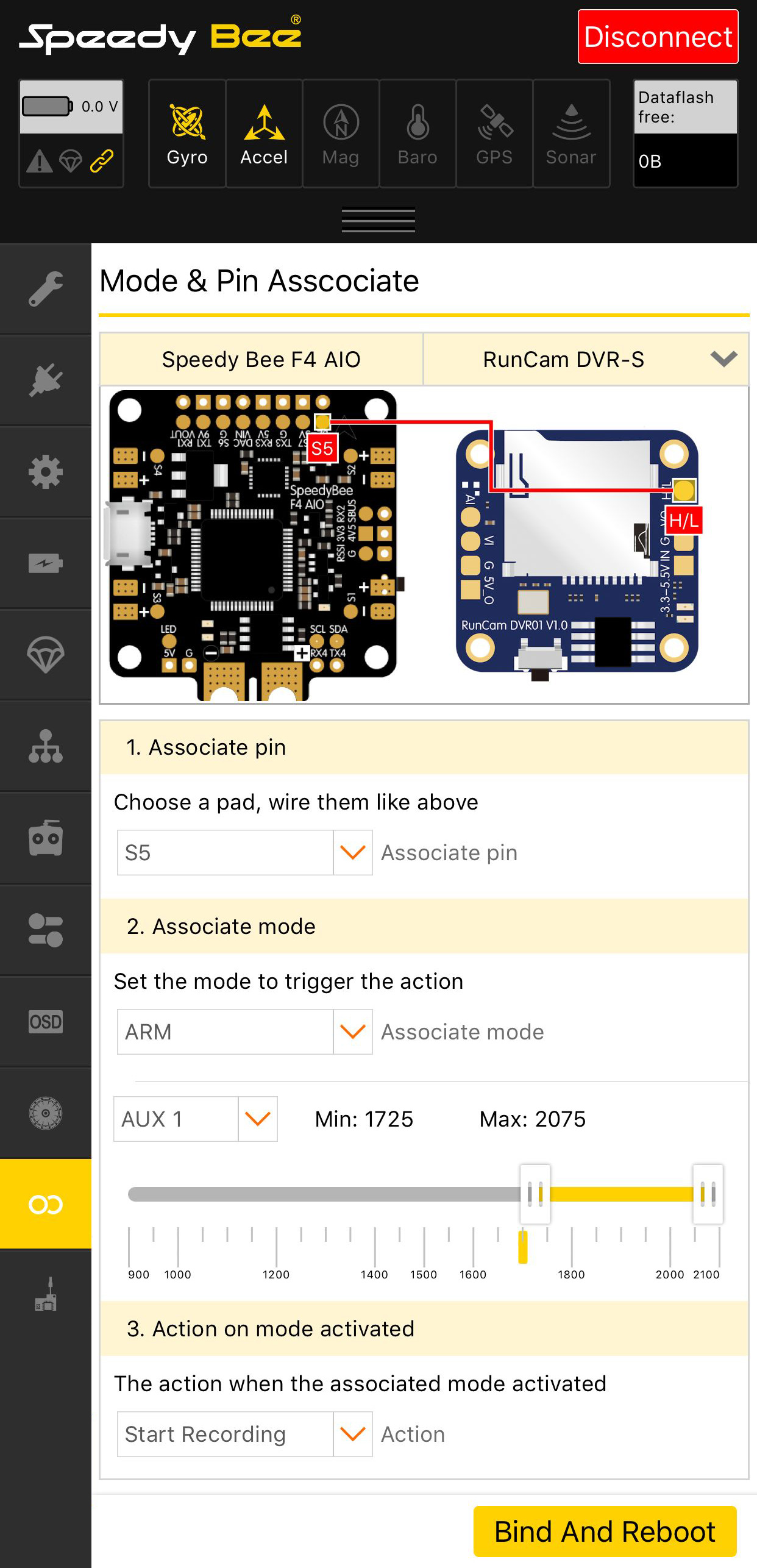
Method 1. Automatic association (App iOS >= 1.0.8, Android >= 1.0.7)
RunCam Mini FPV DVR
  • Select your Flight Controller and RunCam DVR-S.
  • Select the Associate pin, and then connect the PIN you selected to the H/L pad of the RunCam DVR-S.
  • Select Associate mode, we can choose any mode. For example, if you want to start recording after the drone is arming, stop recording after disarming, you can select ARM mode.
  • Associate action, when the assocated mode is actived, RunCam DVR-S will perform this action. In general, this setting does not need to be changed.
  • Click Bind and Reboot.

Method 2. Manual associationOpen the App (iOS >= 1.0.8, Android >= 1.0.7)=> select the Help Center=>click RunCam DVR-S => select Telemerty Control
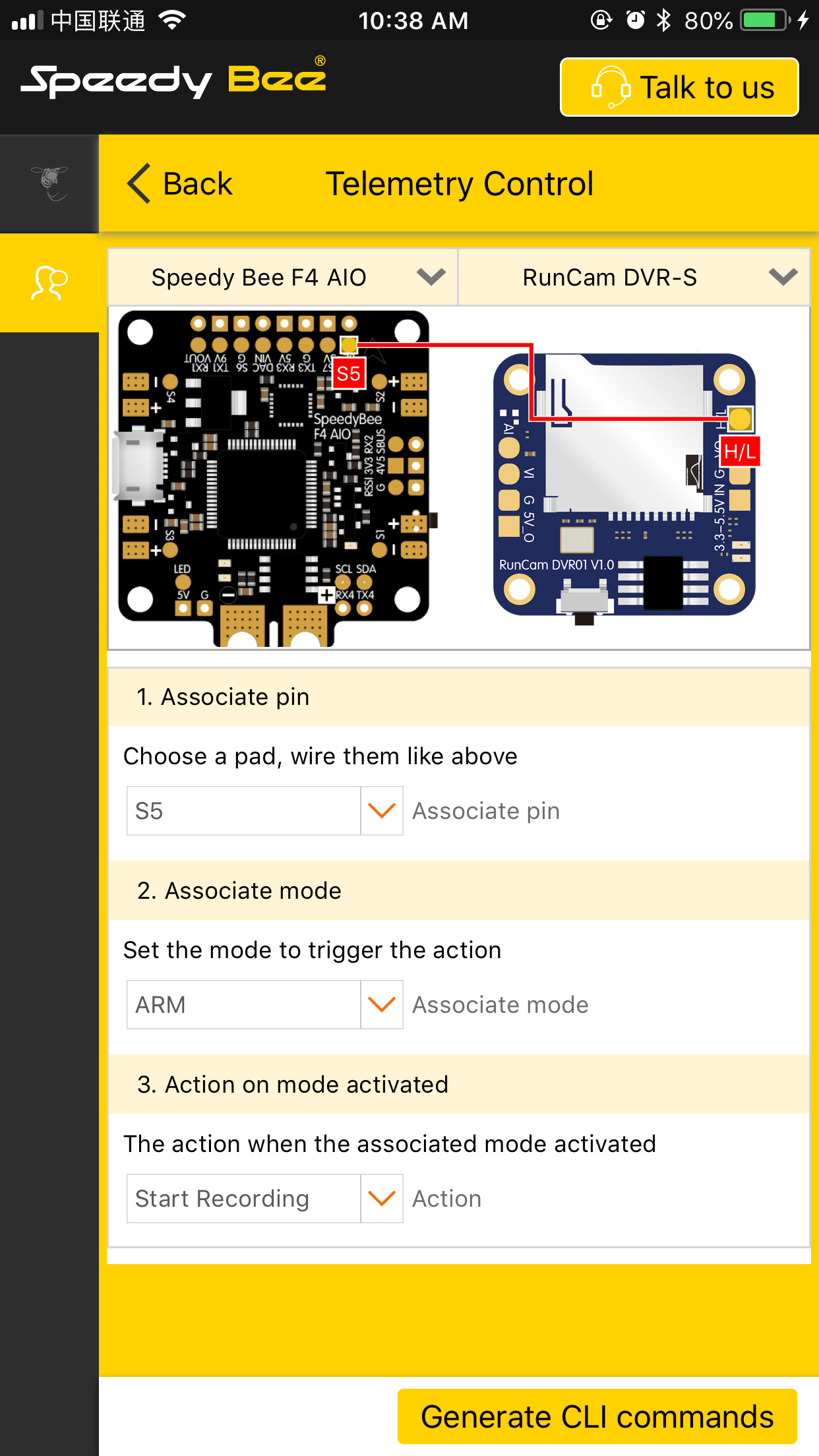
  • Select your Flight Controller and RunCam DVR-S.
  • Select the Associate pin, and then connect the PIN you selected to the H/L pad of the RunCam DVR-S.
  • Select Associate mode, we can choose any mode. For example, if you want to start recording after the drone is arming, stop recording after disarming, you can select ARM mode.
  • Associate action, when the assocated mode is actived,RunCam DVR-S will perform this action. In general, this setting does not need to be changed.
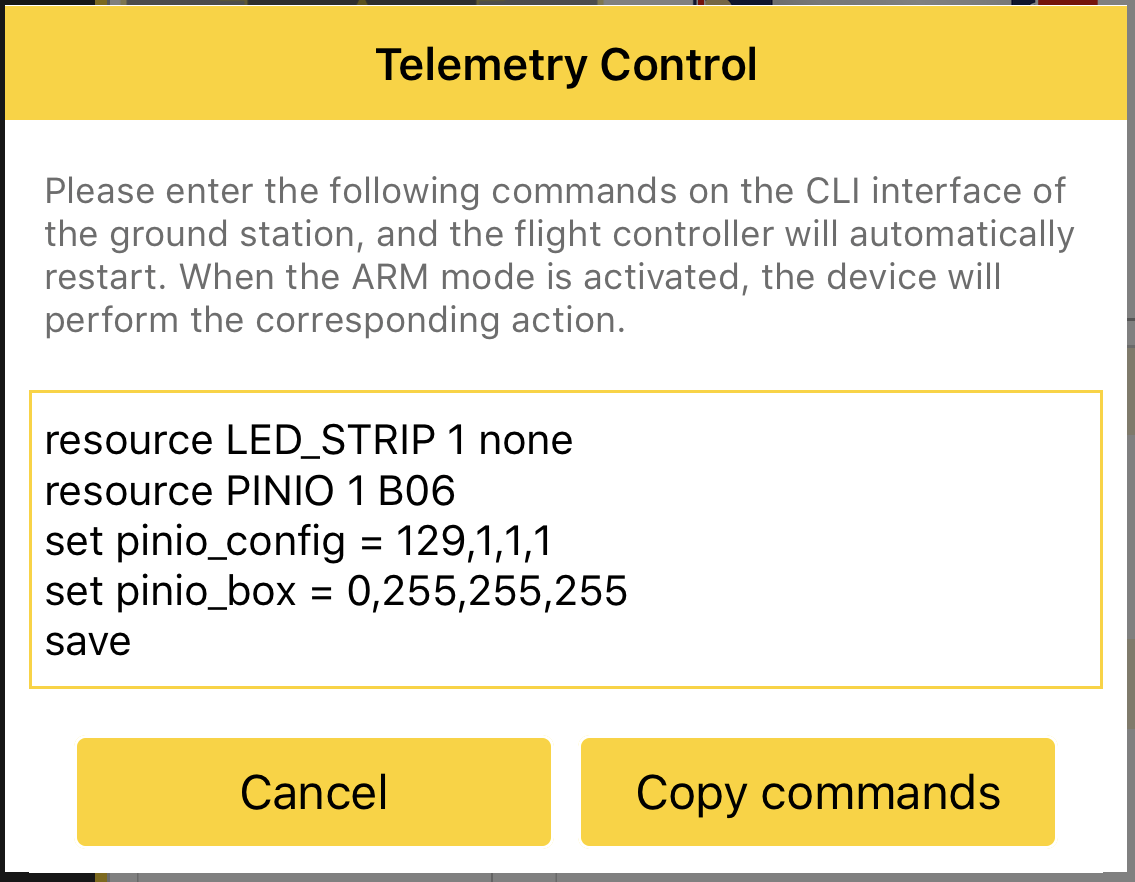
  • Click Generate CLI Commands.
RunCam Mini FPV DVR
RunCam Mini FPV DVR
  • Copy the commands and enter the commands on the CLI interface of the ground station.

Includes

  • 1x Micro DVR
  • 1x Set of M2 Screws
  • 1x SD Card Protector
  • 1x 3pin FPV Silicone Cable (Male)
  • 1x 3pin FPV Silicone Cable (Female)
  • 1x Manual
My Cart
Cart Page
My Wishlist
Wishlist Page

We may use cookies or any other tracking technologies when you visit our website, including any other media form, mobile website, or mobile application related or connected to help customize the Site and improve your experience. Read our cookie policy